Creating 3D Parametric blocks

Long story, questions at bottom.
Firstly I struggled finding step by step articles or videos for creating 3D parametric blocks relevant to version 26+
I want to add components like socket weld elbows and tees, weldolets, sockolets, RJT fittings and Triclover fittings to the parametric library and to be able to have them come up in the BOM.
I found information showing the use of an existing block and using the "Bedit" and "Parametrize" commands to create parameters and constraints. While it created some parameters and constraints, and I was able to create a table for the different sizes it didn't work. While the values in the table would change when changing the part number the physical model wouldn't change. Basically I think the shapes were too complex and insufficient parameters and constraints.
I decided to start from scratch and create my own parameters and constraints for a basic shape then develop on that. (Note: When creating constraints it is better to change the selection mode to prioritise faces or set SELECTIONMODES to 2.)
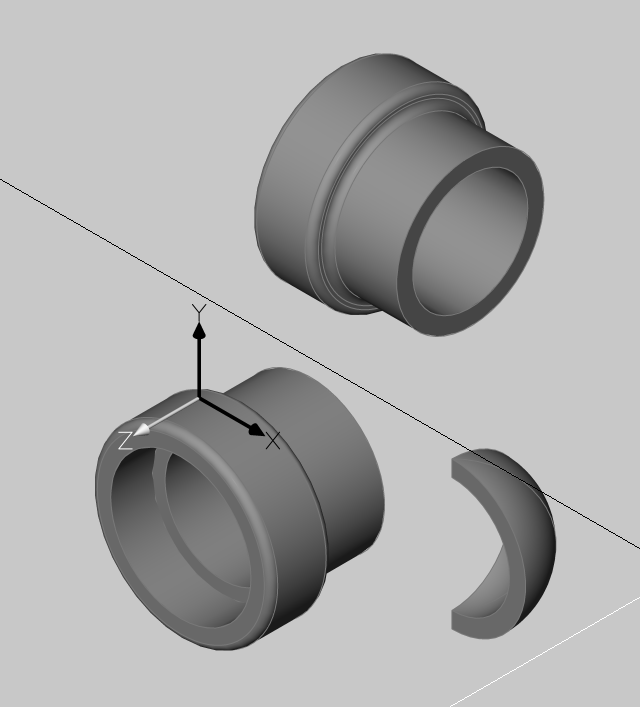
Once I had the base s
olid, (See Base solid.jpg) 1 leg of an elbow, I then copied that solid, rotated it then made a corner infill to complete the 90 degree elbow. If I try and trim the end of the base solid to 45 degrees so the internal bore isn't obstructed the physical body stops responding to the table changes.
I then made another file where I copied the base and rotated it 180 degrees to make a tee.
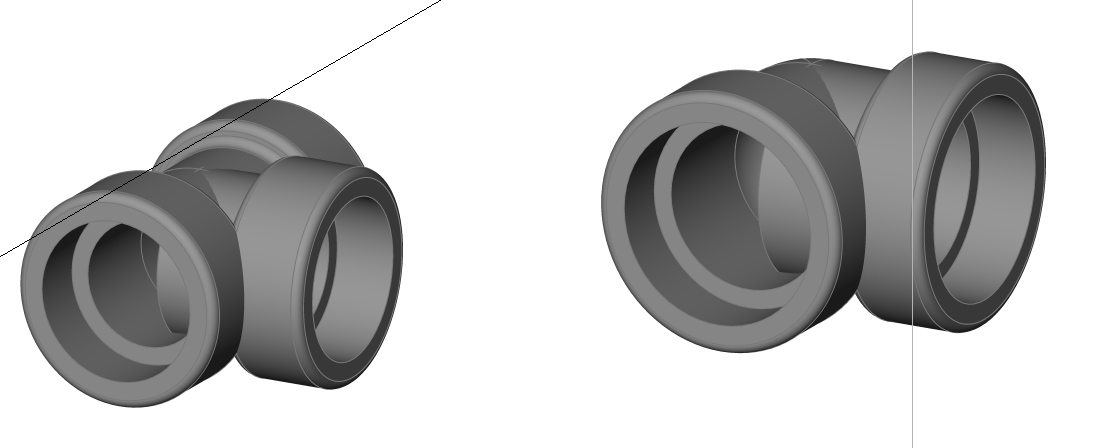
See Complete tee & elbow.jpg
You can see the perpendicular leg protruding inside the fitting. For now it will have to do, the critical elements are all there, socket diameter and depth, distance from 1 leg centreline to base of perpendicular socket.
I have created tables that cover all the sizes and classes from the Benkan fittings catalogue. So far so good, all sizes change as required.
The BOM. I have looked at the parameters in BricsCAD native blocks and matched where required so mine will come in the BOM table.
HOWEVER. While both blocks are created from the same base file and wblocked out, the elbows show in the BOM and the Mechanical browser, the tees don't, sort of.
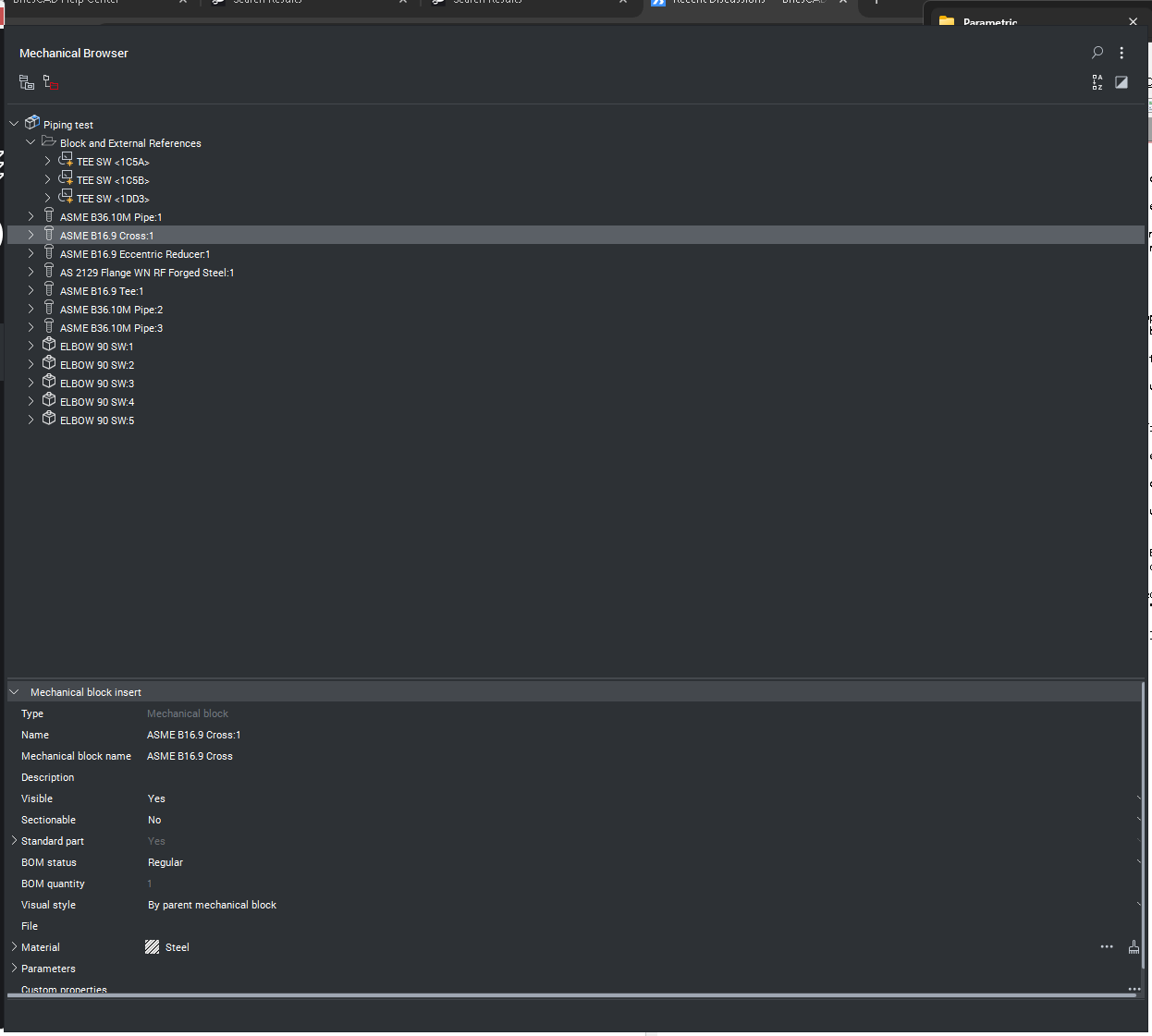
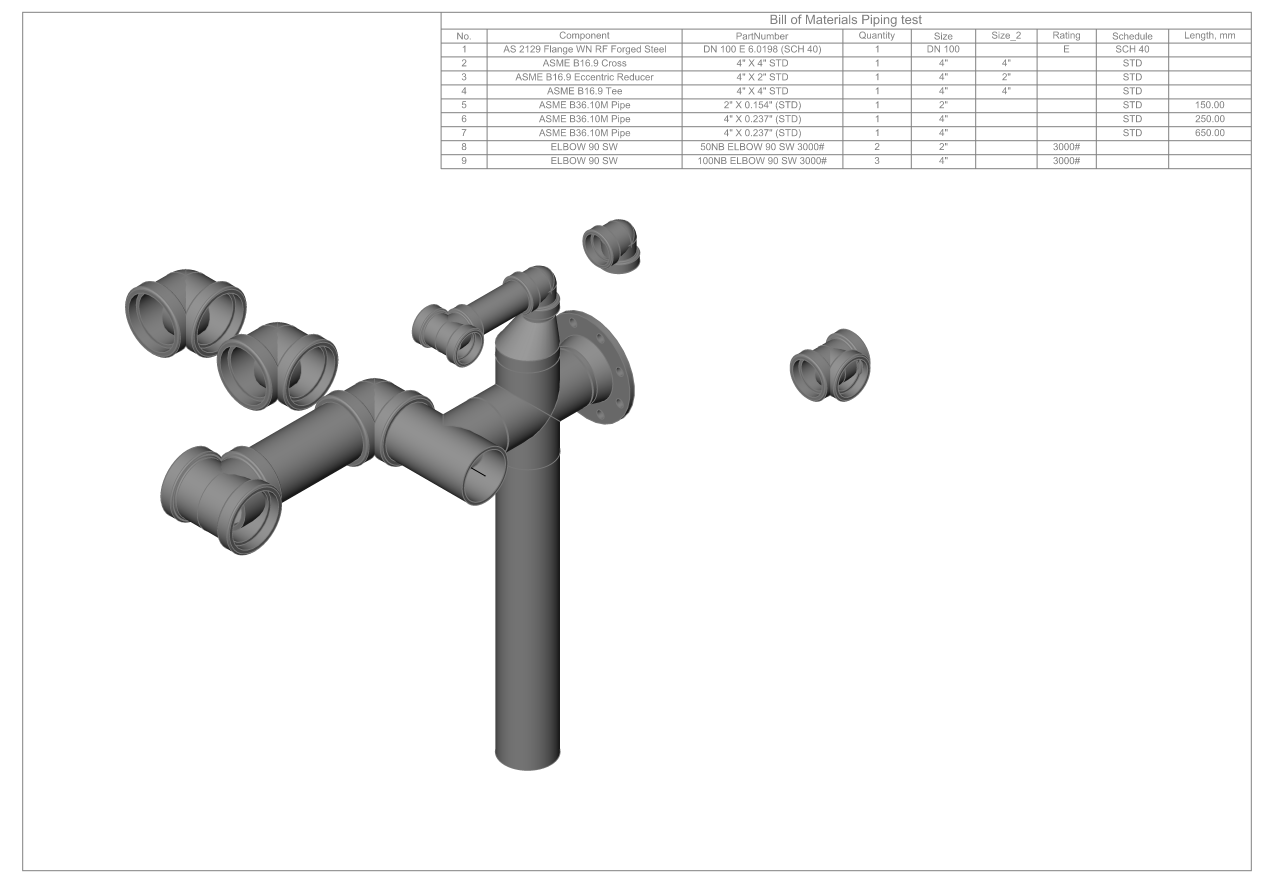
Drawing 1 (Piping test), started with some BricsCAD components, just seeing what was in the library. Then added my elbow and tee, the elbow shows in the BOM and browser, the tee doesn't show in the BOM, in the browser they show under "Block and External references", not their own entry like the elbows. See Piping test drawing and browser screen shots.
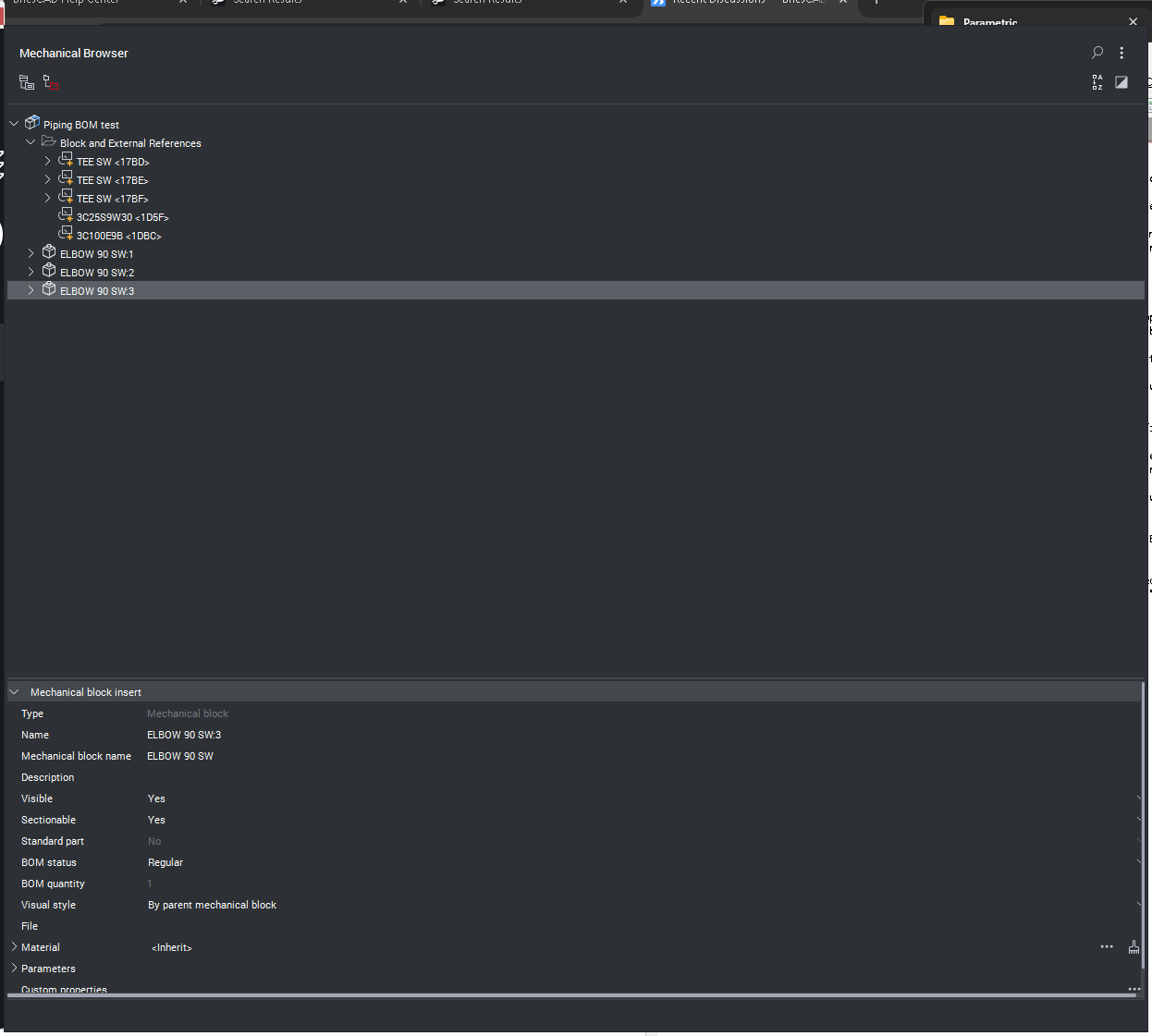
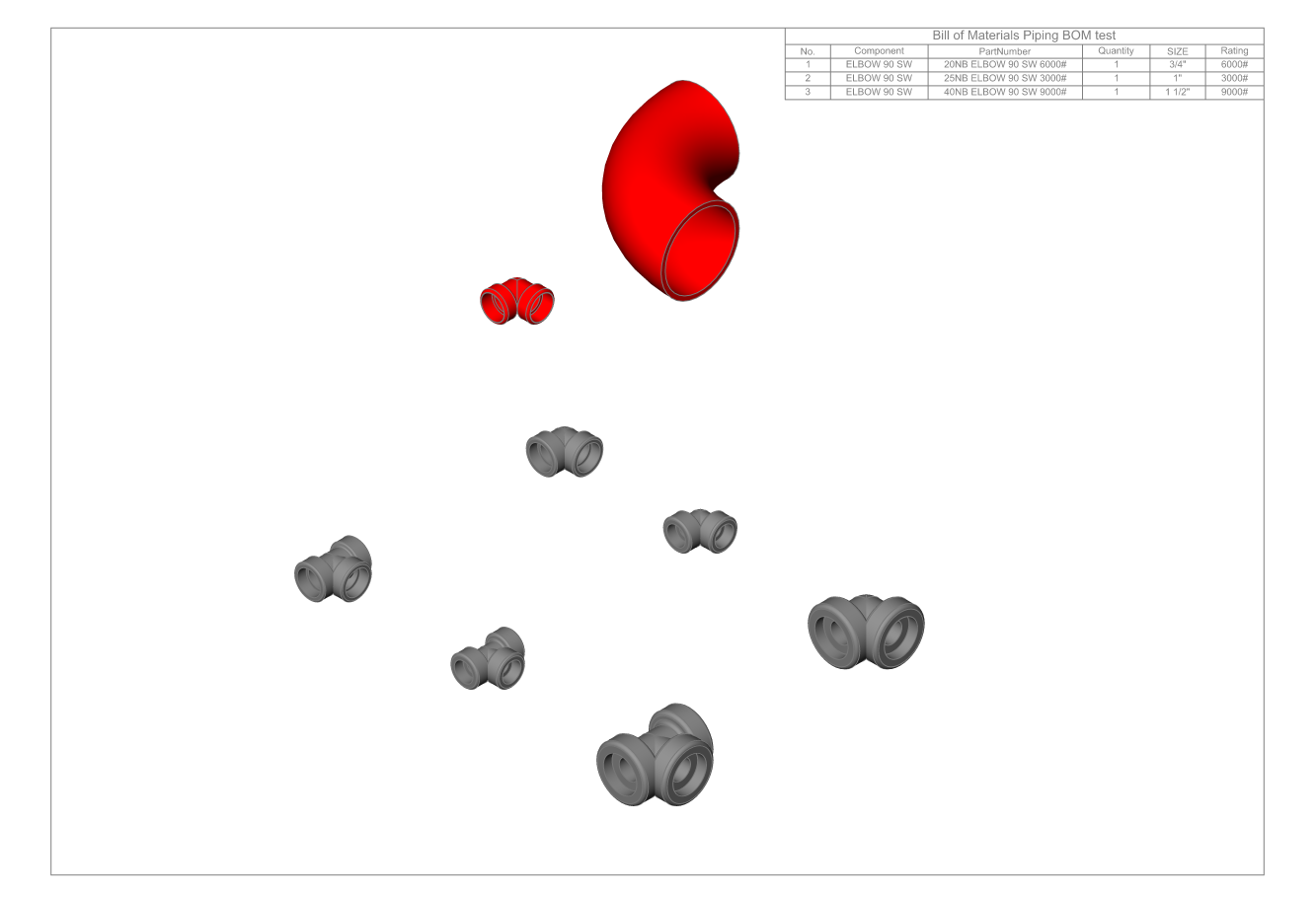
Drawing 2 (Piping BOM test, saved from drawing 1 and deleted and purged the BricsCAD native components. Added a couple of my old librry blocks in red, non parametric. Again the elbow shows in the BOM but not the other blocks. Again in the browser they show under "Block and External references", not their own entry like the elbows. See Piping BOM test drawing and browser screen shots.
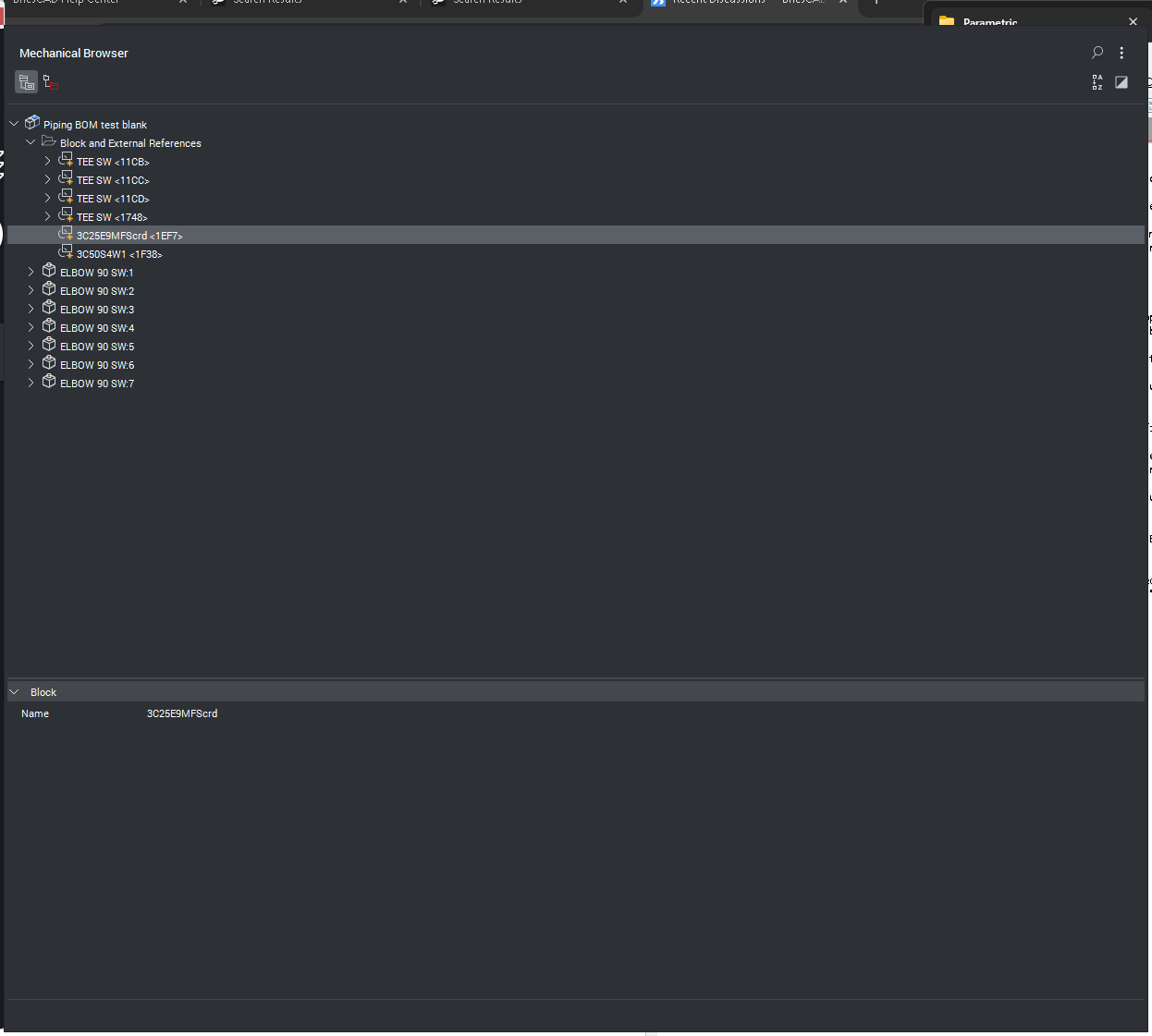
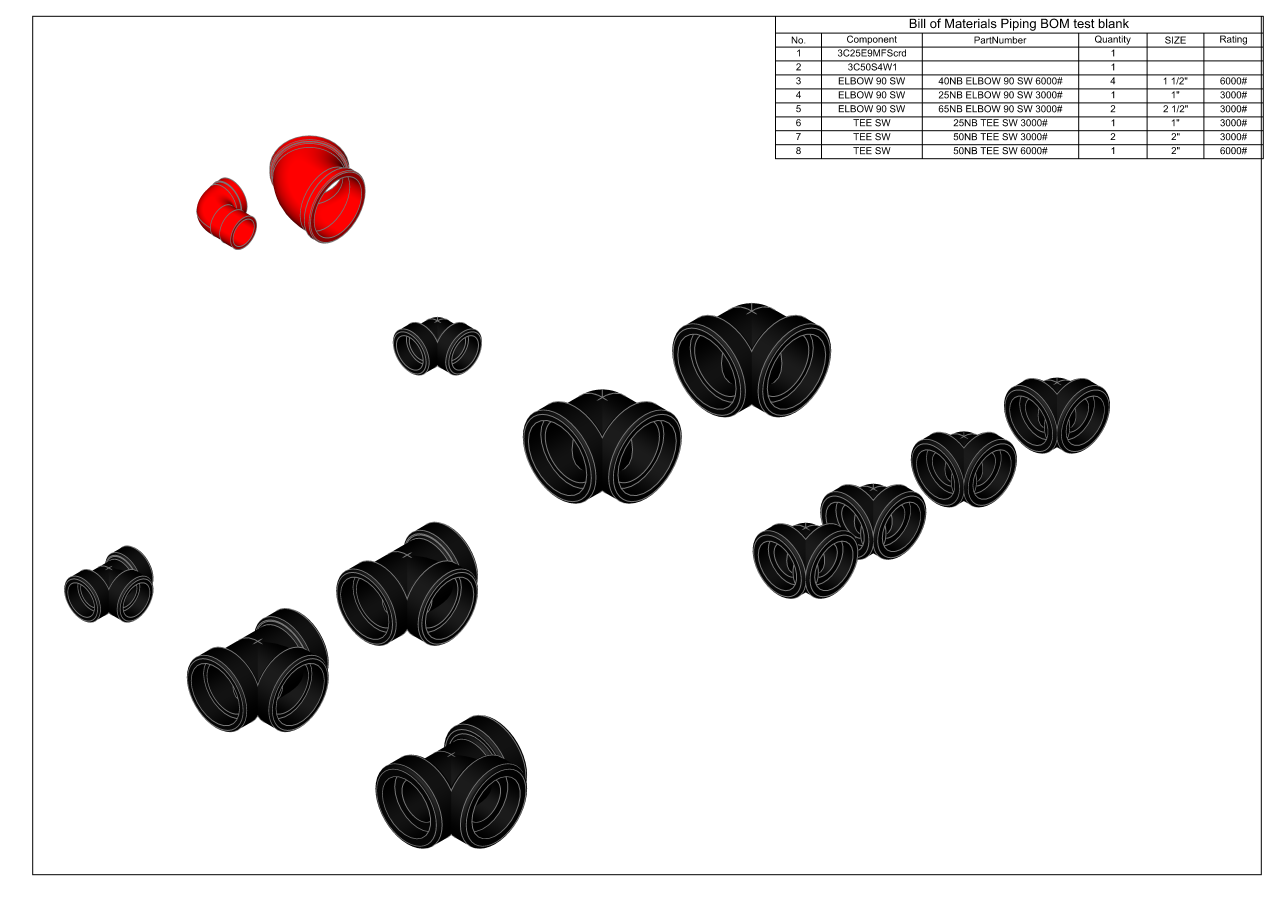
Drawing 3 (Piping BOM test blank), Started with a new blank drawing. Inserted my parametric elbow and tee and a couple of non parametric blocks, in red. While the elbows have there own lines in the browser and the tees and others are under "Block and External references" again, they all show in the BOM table. See Piping BOM test blank drawing and browser screen shots.
- Why do some blocks show in the browser as their own line and others under "Block and External references".
- Why do those under "Block and External references" show in the BOM table in one drawing and not others.
Cheers
Dennis Klenner
PS. Is there a sharing page for anything BricsCAD users have created. Happy to share these blocks once the above issues are sorted.
Comments
-
Have solved the above issues.
Firstly the elbow block wblocked as a "Mechanical block" while the tee wblocked as a standard block, I have no idea why. Hence one having it's own line in the browser (The mechanical block) while the other showed under "Block and External references".
Two things to do:
Firstly when in the block editor run BMMECH command, this converts the block to a mechanical block.
Secondly when in the block editor go to the mechanical browser bar, select the block and set "Standard part" to yes.
Now they function as expected.
Cheers
Dennis
0