Explorer doesn't open

v23 - I hover over the Explorer icon, Status bar says 'Opens the Drawing Explorer (EXPLORER)', click the icon, short pause, nothing happens except Status bar goes from ':' to 'Ready', and any click gets the boing noise until I go ESC.
Looks like the command is being issued but doesn't go anywhere.
It's not that Explorer's opening but hidden behind another window anywhere.
I seem to remember I had to mess with this icon/button, perhaps in CUI, because it had changed to open to some other tab within Explorer, or maybe to open to Layers?
The Explorer icon I'm clicking is one I've added into my Custom CUI Properties toolbar, because I don't have the standard Layers toolbar activated. If I click the Explorer icon in its standard location, the Layers toolbar temporarily activated, same happens.
It happens on all dwg files.
Any ideas? (I'm not on Maintenance)
Comments
-
So, it's displayed properly with a default CUI, but doesn't with your custom CUI?
0 -
No, unfortunately, it doesn't display from either cui.
0 -
Sounds like the explorer dialogue is opening off screen. This can happen when you have a second screen that you disconnect from.
If you search the forum I've previously posted a LISP tool that will reset the window position for you.
0 -
I found it I think at
Lisp is unfamiliar to me, so far, so before that, Jason, does the symptom described at the top look like it's going off screen?:
"v23 - I hover over the Explorer icon, Status bar says 'Opens the Drawing Explorer (EXPLORER)', click the icon, hourglass for a second, nothing happens except Status bar goes from ':' to 'Ready', and any click gets the boing noise until I go ESC."
Same if I type EXPLORER. More like the command is being issued, tries for a moment, then gives up, doesn't display anything, but keeps BC occupied so it won't do anything else? Does it in all dwg files in v23. Explorer opens fine in v24.
I tried a v23 repair install in Windows. In Customise, the Tool bottom panel says: Command ^c^c_explorer - seems OK?0 -
Bump. Repair install doesn't fix it - what if I delete v23, reinstall, recreate the custom CUIs?
0 -
There should be a line in the .arg file for your active profile something like
"Drawing Explorer"="0,0,1924,1058"
In my .arg files it is at the bottom of the file. You can use a text editor to look at the ,arg file. If you find this line please post it.
The values are the x value for the upper left corner of the pop-up, the y value, the width of the pop-up, and the height.
You can also look at the value in the registry using REGEDIT. The full path for the registry location is in the line starting [HKEY_CURRENT_USER at the top of this section.
0 -
Drawing Explorer is Modal, if it’s opened out of bounds, you would still not be able to click on the editor
0 -
Sorry guys, I'm lost.
Its_Alive - 'still not be able to click on the editor' - what editor is that?
martin@enco.us - where are .arg files stored? Search doesn't find any.
Alternatively, I'm at Computer\HKEY_CURRENT_USER\Software\Bricsys\BricsCAD\V23x64\en_US\Profiles\Default\Dialogs\Drawing Explorer - so what am I looking for?0 -
The editor is where you draw, if you can still draw a line, then the Drawing Explorer actually failed to open, not shown off screen
Also have you tried creating new profile? command : PROFILEMANAGER, create, then set current
0 -
Tom,
In the registry try:
Computer\HKEY_CURRENT_USER\Software\Bricsys\BricsCAD\V23x64\en_US\Profiles\Default\Windows\rect
then look for the "Drawing Explorer" entry.
0 -
Make sure BricsCAD is closed when editing the registry, otherwise the changes will be overwritten. I would test by creating a new profile
0 -
Brilliant.
Drawing Explorer REG_SZ 4476,-4.2582,1390
not quite same format as you showed above?"if you can still draw a line, then the Drawing Explorer actually failed to open, not shown off screen" I can't draw a line, so it def has opened?
0 -
Tom, probably it's opened, but located out of the screen. You can check if the Drawing Explorer window can be moved via keyboard: when it should be displayed somewhere, press Alt+Space then type M and try arrow keys to move it.
0 -
I tried that before - and still doesn't seem to do anything.
I typed that, tried once more, and here it is, back on screen! Close it, hit the icon, it reappears.
Thanks everyone.
Register entry still reads Drawing Explorer REG_SZ 4476,-4.2582,1390 - I'd a thought that would have changed?0 -
I checked the LISP I wrote a long time back for this issue, which worked by deleting the appropriate profile key from the registry.
However, it doesn't works with more recent versions of BricsCAD. This is because BricsCAD typically keeps setting changes in memory during a session and only writes them out to registry on app shutdown. In doing so, it overwrites any changes you may have made.
Jason Bourhill
CAD Concepts Ltd
0 -
A solution to this issue is to create a new BricsCAD profile, which will effectively ground hog all your window locations, such as the drawing explorer. However, you also need to recreate any other profile settings that you have.
If you just want to reset a window position, then you can do so by using the User Profile Manager:
- Export out your profile (.ARG file) to file. I recommend that you take a backup of this file, as it allows you to step back if you make a mistake.
- Edit the exported file and comment out the window position value. Commenting is better than deleting a line, as again it allows you to easily step back if you make a mistake.
- Import your updated profile file. When you import a profile, and missing keys are recreated with system defaults the next time BricsCAD runs.
I prefer to do the above with the standalone User Profile Manager utility that allows you to make these changes while BricsCAD is closed.
BricsCAD V25
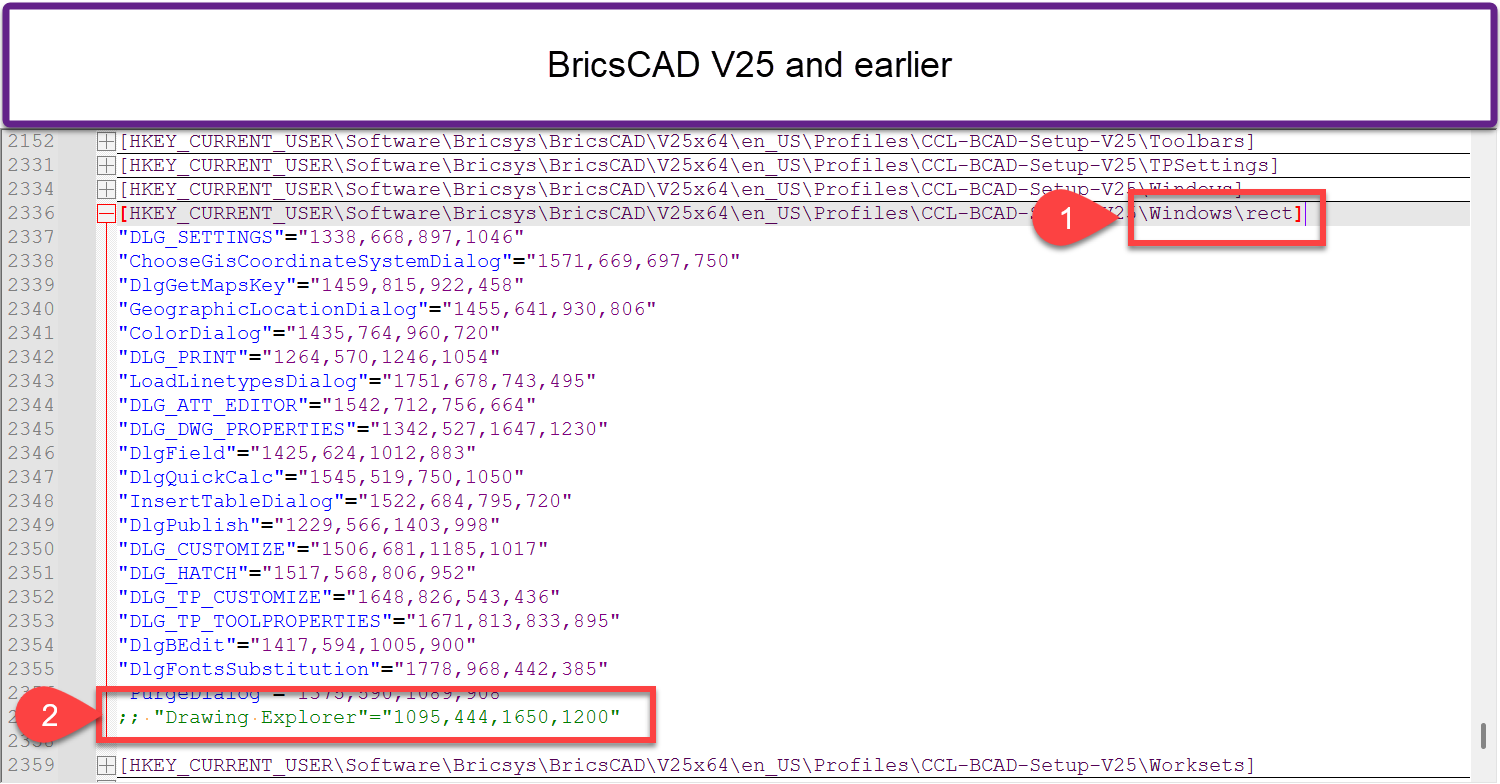
Steps for resetting the drawing explorer location by editing the profile file using a text editor for BricsCAD V25 and earlier are:
- Search the .ARG file for "\Windows\rect"
- Find the line under this starting with "Drawing Explorer" and comment it out by placing a semi colon in front of it, ;;"Drawing Explorer"
BricsCAD V26
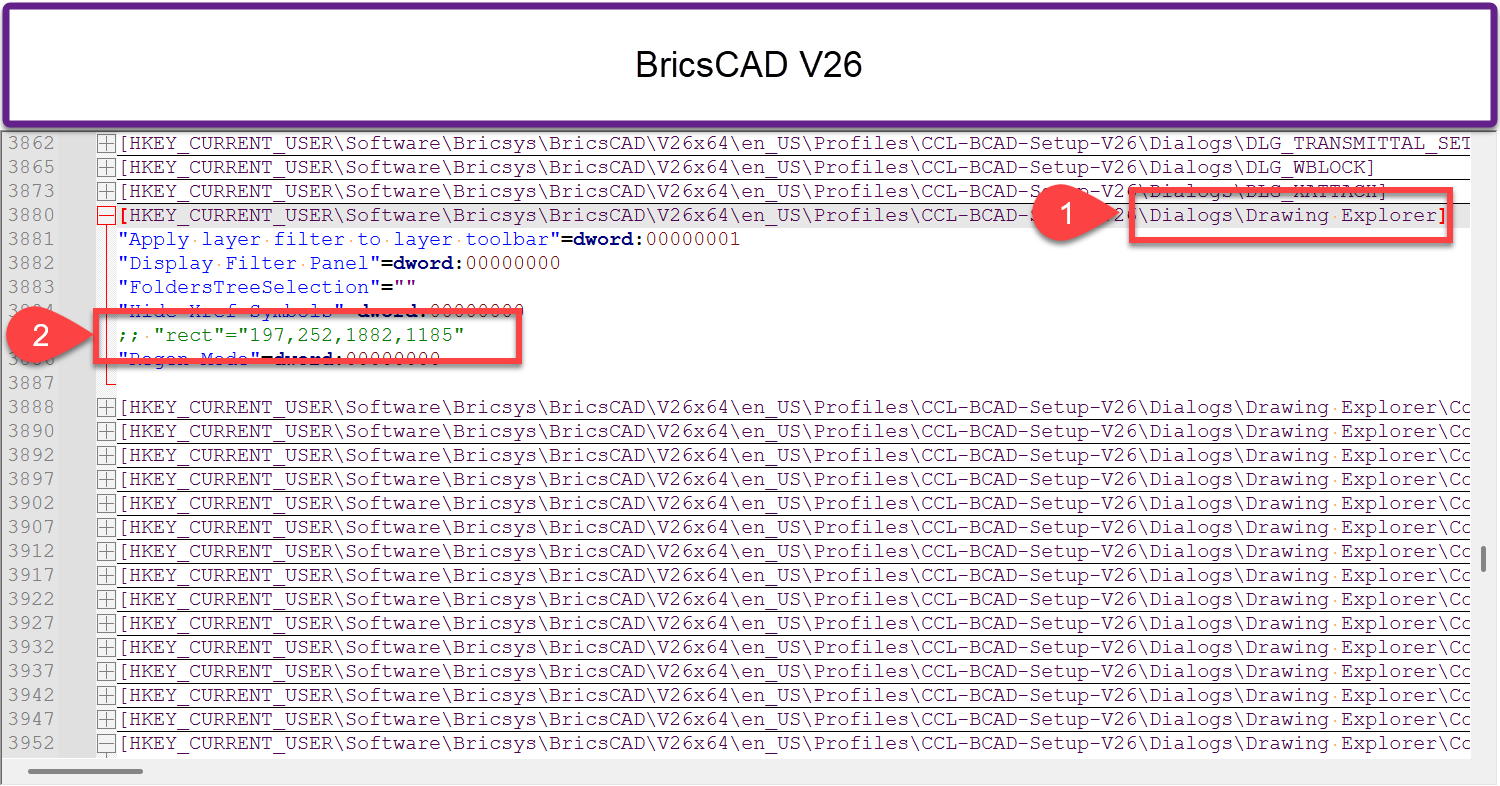
In BricsCAD V26 the window location settings have moved. Steps for resetting the drawing explorer location by editing the profile file in a text editor are:
- Search the .ARG file for "Dialogs\Drawing Explorer"
- Find the key called "rect" and comment it out by placing a semi colon in front of it, ;; "rect".
Jason Bourhill
CAD Concepts Ltd
0