Rotate Model Space View

Comments
-
Right click the LookFrom widget and choose Twist Mode.0
-
Would have never guessed! Cool feature, poorly named. Must derive from Twist option of DVIEW command, as inherited from AutoCAD. To me, twist implies distortion under a torque; better would be Roll view mode.mebicad said:Right click the LookFrom widget and choose Twist Mode.
To rotate the modelspace view about the z-axis (before I learned of this Twist mode) or to any other non-standard orientation, I first set the UCS to align with the xy plane of my desired view and then use the PLAN command.0 -
Bloody ell that is dramatic - could vastly simplify my 2D workflow. Could make feasible the 'pinwheel' method of laying out N,S,E and W elevations in modelspace (so if N is 'normal', S is upside down and E and W are sideways, until you TWIST the lot to suit which you want to work on). Umm, not so sure, but worth a try.0
-
Just did some stuff today easy way is using VPOINT. use the numbers below VPOINT 1,1,1 etc the cond sets a viewport direction used with creating layouts.
(cond
((= ans "3d Front")(vla-put-direction obj (list -1 -1 -1)))
((= ans "3d Back") (vla-put-direction obj (list 1 1 1)))
((= ans "3d Left") (vla-put-direction obj (list -1 1 1)))
((= ans "3d Right")(vla-put-direction obj (list 1 -1 1)))
((= ans "Front") (vla-put-direction obj (list 0 -1 0)))
((= ans "Back") (vla-put-direction obj (list 0 1 0)))
((= ans "Left") (vla-put-direction obj (list -1 0 0)))
((= ans "Right") (vla-put-direction obj (list 1 0 0)))
)0 -
Thanks! That is what I was looking for. Find it weird that's not the default for BricsLT since it can't do 3D but whatever. I agree with Scott that the "twist" is a poor word choice. I even right clicked that thing multiple times but never thought Twist is what I was looking for.mebicad said:Right click the LookFrom widget and choose Twist Mode.
Now I just need to figure out how to mark it as a solution....0 -
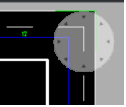
Forgot Navvcube turn it on can select direction.
0 -
Now that the lookfrom has changed there is no Twist Mode, and cannot find a command.
There’s DVIEW but apparently switches to perspective, which isn’t what’s needed.
This should be as simple as rotating a piece of paper on a desk, a 1 click 90 degree rotate solution.
In Tekla Structures this is ALT+Arrow Left anti clockwise, ALT+ Arrow Right clockwise.
Please Bricsys, get back to development and FINISH the Lookfrom. Make a proper viewcube the way we asked for…look the Chinese did a much better job understanding users needs and implemented exactly what the user needs.
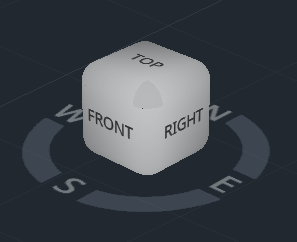
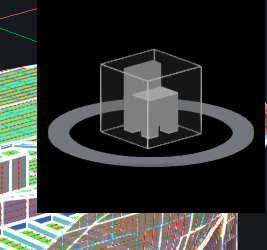
We need a compass, NSWE, arrows to rotate modelspace like we do a piece of paper, we don't want it transparent, we don't want a chair inside but we need text on each face that’s visible.
Octave promised us a year of exiting updates and development. We’ve seen nothing yet aside from more crashing slower performance and more random strange issues and a DWGPROPS that makes it even more inconvenient to enter data.
 0
0 -
Hello.
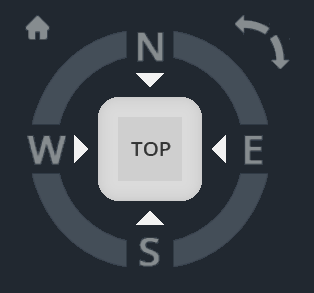
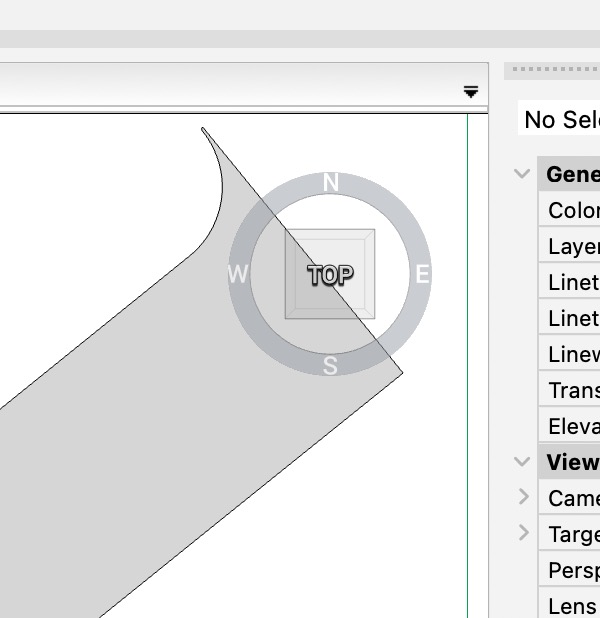
You could experiment with making use of the compass of the new LookFrom.
The compass is the outer ring of the widget.This ring displays a stronger highlight when the mouse cursor is directly above it.
Click on the ring, keep the LMB pressed, and slowly drag up - down, and left - right, successively, to see how the view rotates.
When the rotation approaches a standard orientation, N, S, E, W, the view snaps to that orientation.0 -
Is it possible to make background of new LookFrom transparent?
 0
0 -
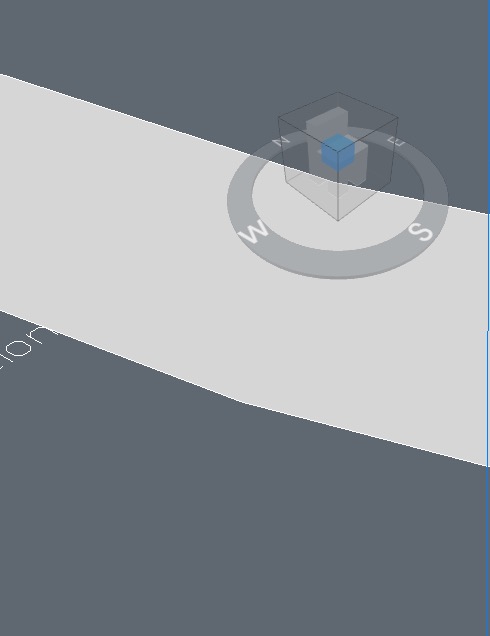
For me on Mac it is ….
 0
0 -
This is Windows:
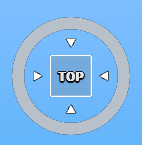
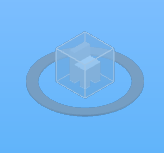
So tell me, where am i?
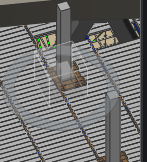
Left Click Hold Drag up, down left or right just moves everything outside the viewport at some weird angle, not what we asked for.
We ask for arrow buttons one pointing anti clockwise one clockwise, each click and successive click rotates the VP 90 degrees.
Autodesk's Viewcube design is tried and trusted with the functionality needed, it's can't be more simple to replicate an existing design, yet the UI developers deviated from a known design/implementation and produced this half assed problematic thing. The Graphics engine provides a native viewcube, so why on earth did Bricsys UI team go an build the lookfrom in QT, it doesn't even sync to the VP frame rate.
It's hard not to sound like a 'mean ungrateful asshole', but frankly, the UI developers at BricsCAD seem like amateurs.
UI update in BricsCAD they told us in 2021 us will take a decade!! WTF??
They Started this UI update in 2022, 4 years down the track not even half is complete and the work they have done is unfinished and broken in many ways.
No application UI update should take more than 1.5 years. Look at VRED, that didn't take a decade.
0 -
If happy with a pop menu. Can have a sub menu Views. This was done for houses some 30 years ago. CTCeview sets the views plus a liitle more in the package.
[Set Plan]^c^c^p(setq look "P")(load "ctceview")
[--]
[Set Right elevation]^c^c^p(setq look "R")(load "ctceview")
[Set Left elevation]^c^c^p(setq look "L")(load "ctceview")
[Set Front elevation]^c^c^p(setq look "F")(load "ctceview")
[Set Rear elevation]^c^c^p(setq look "B")(load "ctceview")
[--]old code should be a cond
(if (= look "R")(command-s "-vpoint" "1,0,0"))
(if (= look "3")(command-s"_.vpoint" "-1,-1,1"))
0 -
Until BricsCAD creates your dream LookFrom you may want to try my workaround.
I created a two-button toolbar that sits next to the LookFrom on the top-left of my screen. The buttons rotate the model view in 90 degree increments both CCW and CW. Not an elegant solution but maybe a reasonable workaround.
The routine use a global variable LookFromAngle to keep the current angle.
; Button commands to rotate model view in 90 deg steps
; Jerry Fiedler - July 2026
(defun c:twistCCW nil (twistModel -90.0))
(defun c:twistCW nil (twistModel 90.0))
(defun twistModel (dir)
(command "ucs" "world")
(setq LookFromAngle (+ LookFromAngle dir))
(command "ucs" "z" LookFromAngle)
(command "plan" "Current")
(command "zoom" "scale" ".9x")
(if (equal (abs LookFromAngle) 360. 0.0001) (setq LookFromAngle 0.0))
(princ)
)
; Set default.
(setq LookFromAngle 0)
(princ)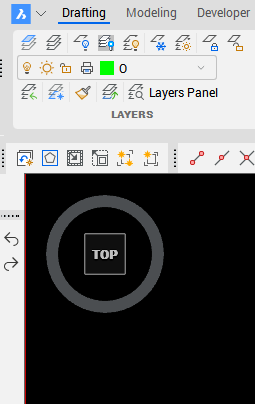 0
0 -
Hi Jerry, this looks like a great solution.
What are the steps to achieve this?
0 -
The solution consists of a lisp routine and a toolbar with two command buttons. I do not know how your BricsCAD is setup and I don't know how much you know about creating tools so I will just list the basic steps:
- Download the attached lisp file and store in a folder where you keep your lisps. The folder must be in the BricsCAD search path. The settings panel will show the support paths already set but you can always make new ones.
- Provide a way to load the lisp routine (file) into your drawings. I use the "on_doc_load.lsp" by adding an autoload command. Example: (autoload "ModelViewRotate.lsp" '("twistCCW" "twistCW")). This will load the routine when you click on a button that has the commands twistCCW or twistCW. There are other ways to load lisp files.
- Open the CUI editor and create a new toolbar. Provide a name for this toolbar so you will be able to find it when necessary. Example: LookFromRotate. I have a "partial CUI" where I keep all of my customizations. I never modify the built-in CUI, but I believe you can, although I do not believe it is a good idea to do so.
- Add two command buttons to the new toolbar. Give them names that mean something to you. Example: RotateModelCCW and RotateModelCW. The command for the CCW button must be twistCCW and for the CW button twistCW. (for some reason I cannot type the caret c caret c that should be in front of these commands). The icons I used are from the built-in list. For the CCW button I used "undo" icon and for the CW the "redo" icon.
- In the settings panel put the LookFrom tool in the upper-left of your workspace.
- Right-click in the ribbon or toolbar area of your work space and select "toolbars". Find the new toolbar you created in step 3 and select it (a check mark will be displayed). The new toolbar will appear somewhere in you drawing area.
- Drag the new toolbar to the left edge of your workspace and dock the toolbar there. It should just show the two buttons as shown in the image in my previous post. Slide it up and down as necessary to align with the LookFrom tool.
- If everything looks good save your workspace. I do not modify the built-in workspaces. I have my own named workspace where I keep settings.
- Click on either of the new buttons and see if it works.
I think that is everything.
0 -
@Jerryfiedler nice simple method.
I consider using custom toolbars via a MNU is so much simpler that trying to explain how to do it via the CUI editor, The other nice thing is if you make a custom mnu file you can have pop menu's, image menu's and toolbars in one source file. Your mnu can contain multiple menu's and toolbars. You only need to make the ICONs like the +90 and - 90. I use Paint.net to make them as can set correct Icon size.
If you can use Notepad then you can make custom toolbars, another advantage is when you do an upgrade you do not have to redo all the CUI edits.
This is something I wrote as implied "How to", just a start for any one wanting to make their own custom menu's.
@x4x One of the things I would do is make a directory for saving all your downloaded lisp files, I have like 1000+ in one directory. You simply add a directory to your support paths. So the programs can be found. For me D:\alan\lisp. If you start looking around the forums you will soon get more programs.
I have an install.lsp program it does all the hard work, unzips a zip to a new PC, adds the correct support paths, adds custom mnu's, sets a users individual drafting preferences some want different toolbars.
This is a custom toolbar menu, exists as a MNU file made with notepad happy to provide more details.
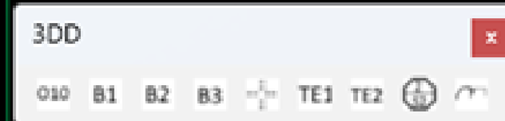
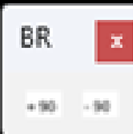
***MENUGROUP=Lookfrom
***TOOLBARS
**LOOKFROM
ID_LOOKF_0 [_Toolbar("LOOKF", _Right, _Show, 0, 0, 1)]
+90 [_Button("Change view +90",PLUS90.bmp,PlUS90.bmp)]^C^C^C twistCCW
-90 [_Button("Change view -90",MINUS90.bmp,MINUS90.bmp)]^C^C^C twistCWor this will load on demand code, just have program lookfrom.lsp in a support path.
+90 [_Button("Change view +90",PLUS90.bmp,PLUS90.bmp)]^C^C^C (if (not twistCCW)(load "Lookfrom")) twistCCW
0 -
@ALANH The menu file method is certainly the way to go when you want to share or rollout features across multiple users. Your uploaded document about POP menus is very informative.
During your career, I believe, you set up countless CAD systems for teams of designers. During my decades long career as an engineer I have only been responsible for one person, me, and one PC, mine. We have two very different perspectives, to say the least.
I prefer the CUI because it has all the pieces of the UI clearly arranged. It is very easy to create or modify a feature. Sharing the customization is probably messy but I have never had to share my setup.
Since I have all my customizations in a "partial CUI" it is very easy to transfer CAD to a new PC which I have done several times over the years.
0 -
This is BricsCAD Pro running in Windows 11:
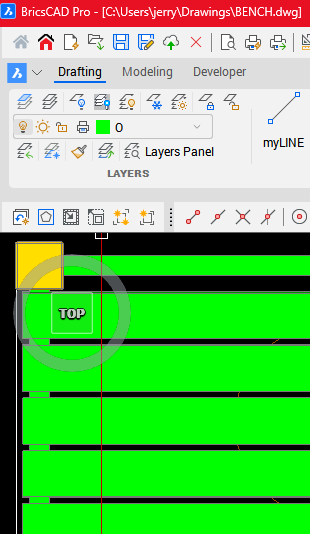
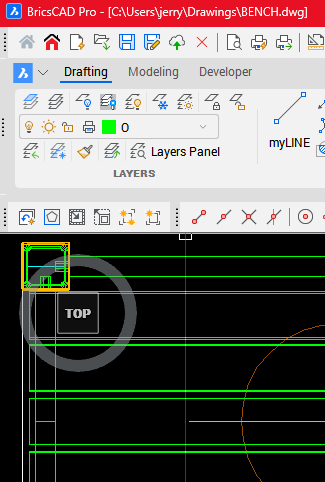
This may be the default since I did not set anything. I was not able to find a setting regarding the background transparency.
0 -
@x4x Regarding your question "So tell me, where am i?"
I am not sure just what you are asking. I have system variable NAVVCUBEOPACITY set to 50. The cube is just visible. However when the mouse hovers over the cube it becomes very visible with the appropriate "face" highlighted.
If I grab the compass ring and move the mouse either left-right OR up-down the view rotates.
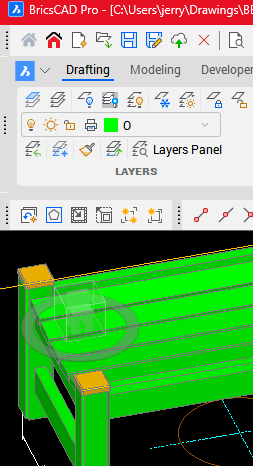 0
0 -
Thanks for clue. At the moment I ‘m using WIN 10, but since I received from Octave information that next Brics revision will not work in Win 10, I have to consider to upgrade system.
0 -
Hi Jerry, I have Navcubeopacity at 100, but the element is still mostly transparent. I find it very difficult to see/know what faces of the cube are facing me, even if there's nothing behind it, i'm always second guessing where I am and often have to look at the UCS Icon as the more reliable reference.
The other viewcube examples, AutoCAD, ZWCAD etc, they are not transparent, do not have a chair inside and have each face clearly text labelled, no second guessing.
0 -
Awesome Jerry, thx a million.
You're lsp works well.
Now BricsCAD UI team if they could finally fix the UI so the toolbar stays in the place. The way it's been every time launch BricsCAD the tool bars justify back the the far left. In AutoCAD they have right click lock toolbar and it can be placed anywhere and removes the titlebar so it's nice an thin.
I'll have to read up again the partial CUI vs modifying the main cui. Was always simple enough in AutoCAD but BricsCAD, i've have several disastrous events where, I created a partial, updated BricsCAD and see the partial CUI is zero bytes (no content), then other situations add customisations to the main CUI and every update they are mangled (custom context menus mainly).
Anyway, thanks for this solution Jerry, works nicely.
0 -
@xdx if your menu updates are not ribbons, then think about using a mnu file its a text file the original way to make a pop, toolbar or image menu, even a digitiser menu. All done before the ribbon existed. You can use Notepad to make the mnu file, then menuload command to do just that make and load a cui file.
Unfortunately a CUI and CUIX are xml files so have way more info than the old fashioned mnu file. I am running 4 custom pop menu's and two custom toolbars, the toolbars are inside the custom mnu. You can not make a ribbon from a mnu. Have often thought about writing a program to do it, write a CUI.
0